Sometime in late 2024, I found myself on my phone a lot. My son, Jack, was only a couple months old and my phone usage had increased dramatically. As a newborn, Jack was not the kind of baby who could be put on his back to sleep. He wanted to be on someone, always.
Anne and I would trade off naps. We’d settle into a chair, get comfortable and let Jack sleep for a couple of hours. When it was my turn, sometimes I’d watch a movie or read a book, but often I’d be on my phone, scrolling endlessly.
I didn’t like this new pattern. There’s something different about phones. I feel productive while using a laptop or desktop computer, but the way I interact with a phone is addictive, compulsive and often mindless. In lieu of ditching the phone all together, I decided to experiment with features to intentionally make it less interesting. I wanted the experience to be dull and functional. Here is what I came up with.
Custom app launcher
I first decided remove all app icons from my home screen. I would instead have to search* for the application I wanted by swiping to the right, pulling down and typing in the app name. This was designed to be more work to reduce lazy taps on Instagram or Twitter.
I coupled this with a launcher application called Blank Spaces. This replaces your default home screen with list of text items that map to different applications. You can, for instance, map “Music” to open Spotify or “Chat” to open Telegram. While you could leave this list blank, I chose 10 commonly used applications and split them over two screens.
When I turn on my phone now, I see a black screen and a list of five white words.
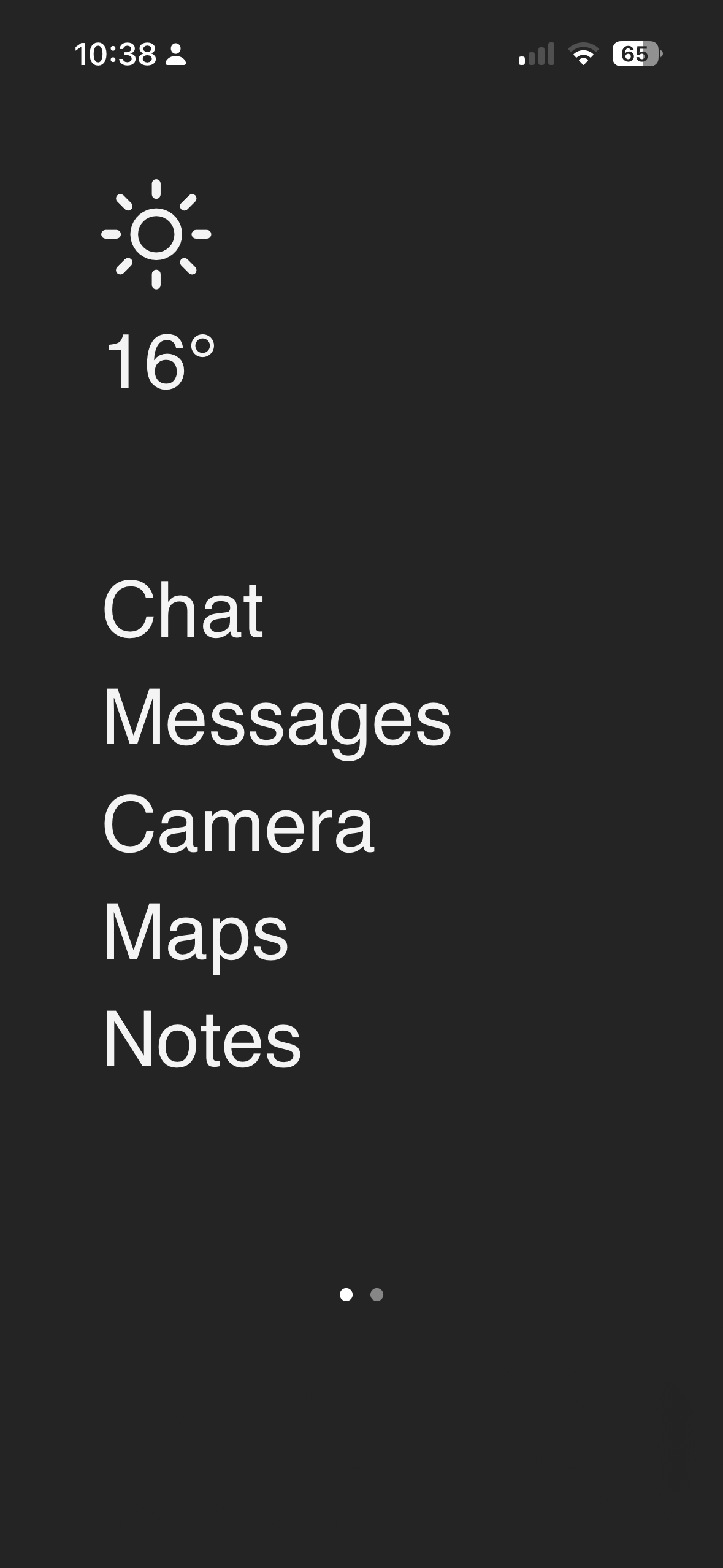
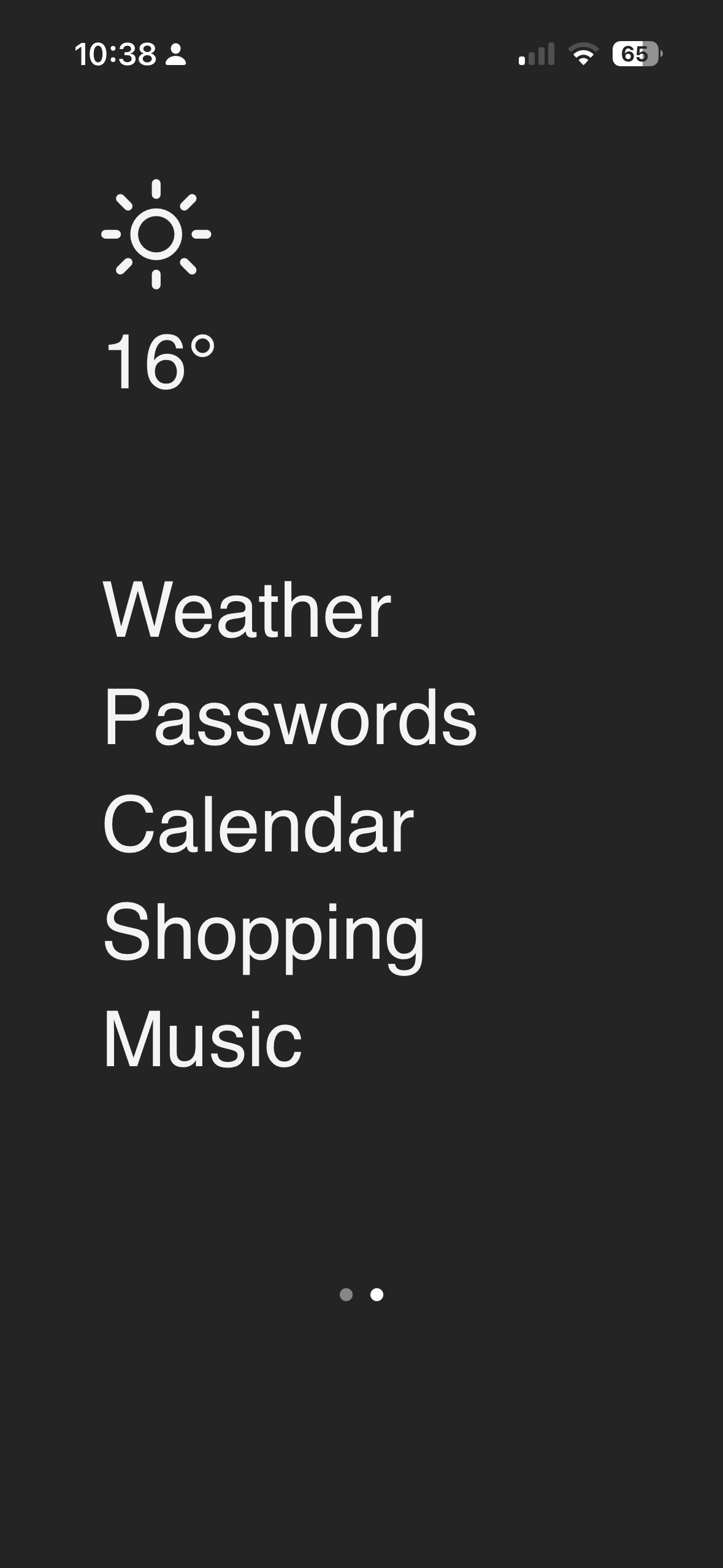
Blank Spaces in action. Two pages of apps.
Color filters
Through the Accessibility settings, iOS lets you create custom colour filters that apply to the entire operating system. The controls in older versions were were rather coarse — awkward colour tints and a harsh grayscale were possible — but newer versions introduced an “Intensity” setting. This means I can partially apply grayscale, retaining some colour contrast while reducing those unnaturally bright colour that scream for your attention.
This has been a game changer. Notifications, alerts, shiny app feature, have all lost some of their luster, some of their power. Whenever I look at a screen with a normal hue now, it looks so unnatural and fake to me.
This move was so successful for me and my ability to focus while using my phone that I now use it on all three of my computers and my iPad. I set up an equivalent configuration on the family TV but my wife wasn’t a fan so that one doesn’t get used much.
Zap
I discovered - through a Twitter thread that I can no longer find - that you can use the AssistiveTouch feature inside the Accessibility settings to create a quick-access menu for system-wide shortcuts. I’ve experimented with some shortcuts on this menu but really there are only a few I use:
- Zap: disable wifi, cell data, and bluetooth
- Unzap: enable wifi, cell data, and bluetooth
- Blackout: toggle colour filters on and off
“Zap” is essentially the same thing as Airplane Mode, but it forces all networking features off as opposed to toggling them. It may seem redundant, but it has made enough of a difference to me to keep it. I habitually “zap” my phone before bed and “unzap” it in the morning. I do these when my phone is pressed against my body as well to avoid frying my junk with EMFs.
Blackout is for times when I actually need to see the colour of something — like online shopping — so it’s handy to have that easily accessible.
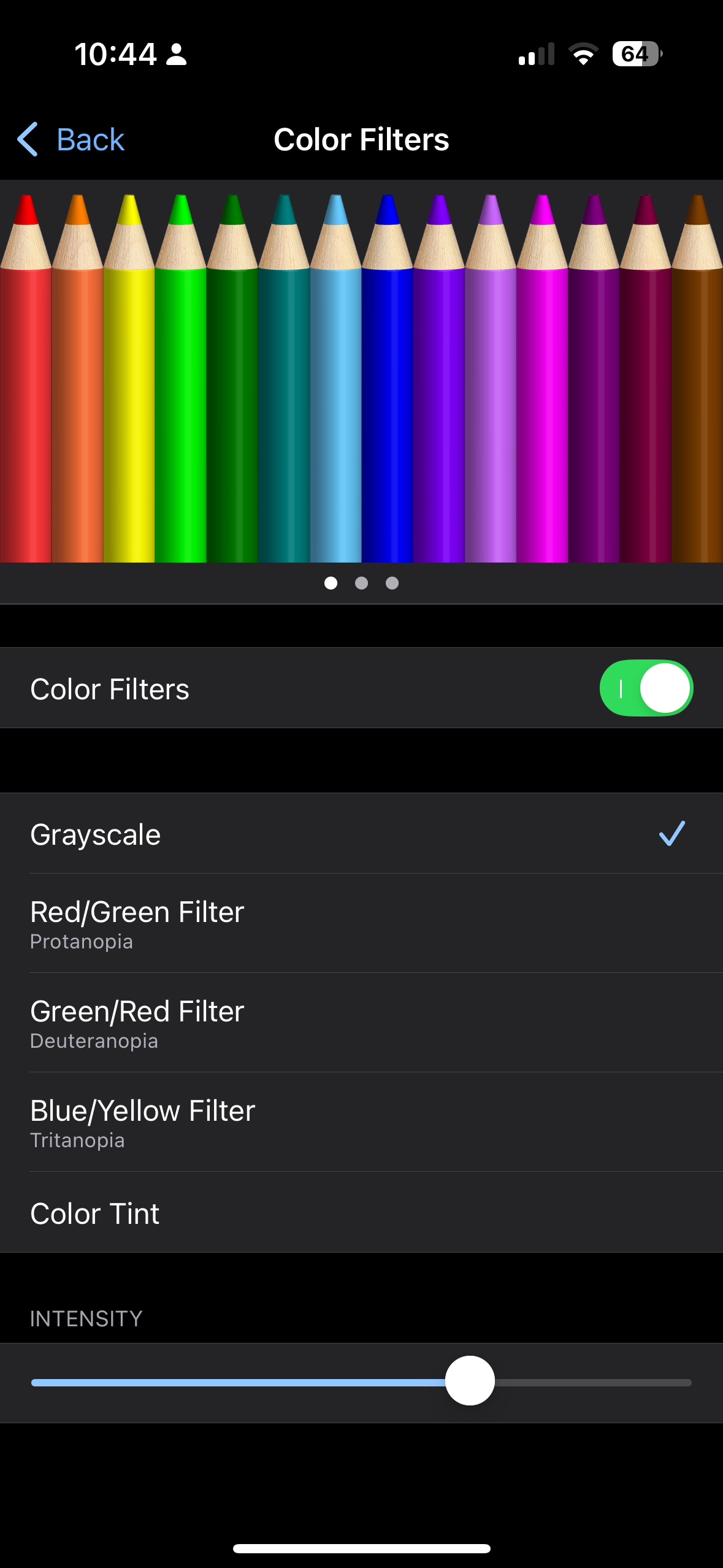
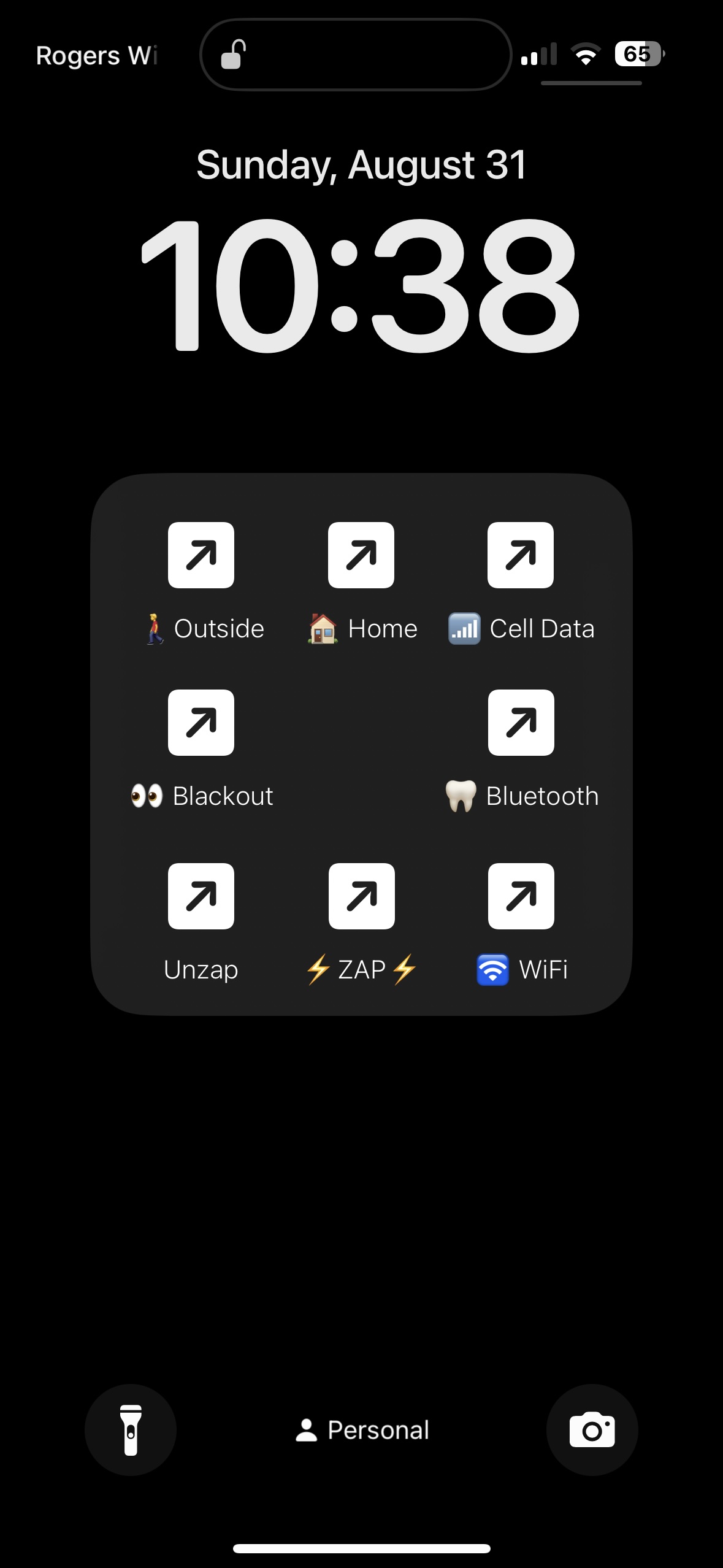
iOS Color filters and AssistiveTouch shortcuts
I’m still uncomfortably attached to my phone, and I still catch myself endlessly scrolling Twitter or Instagram, but overall the relationship has improved. When I pick up my phone, I generally use it with greater purpose. Get in, get out, move on with your day. That’s the goal.
Now, when someone else picks up my phone — to take a photo perhaps — they usually notice that something’s different about it. This often kicks off a conversation about phone addiction and how I’ve tried to tame mine. I can’t promise these tricks will help anyone else cure their addiction, but they’ve helped my manage mine more effectively.

Ross Noble is a software developer, ultrarunner, podcaster and former van-dweller with a passion for the outdoors. He writes about running, cinema and anything else that interest him.
Montreal, QC